 Recordvert
How Recordvert works
A guide on the left of the window takes you through six steps. At the end you either export the PDFs straight away or review each email first. If you'd rather jump around, click "Use Tabs Instead".
The six steps
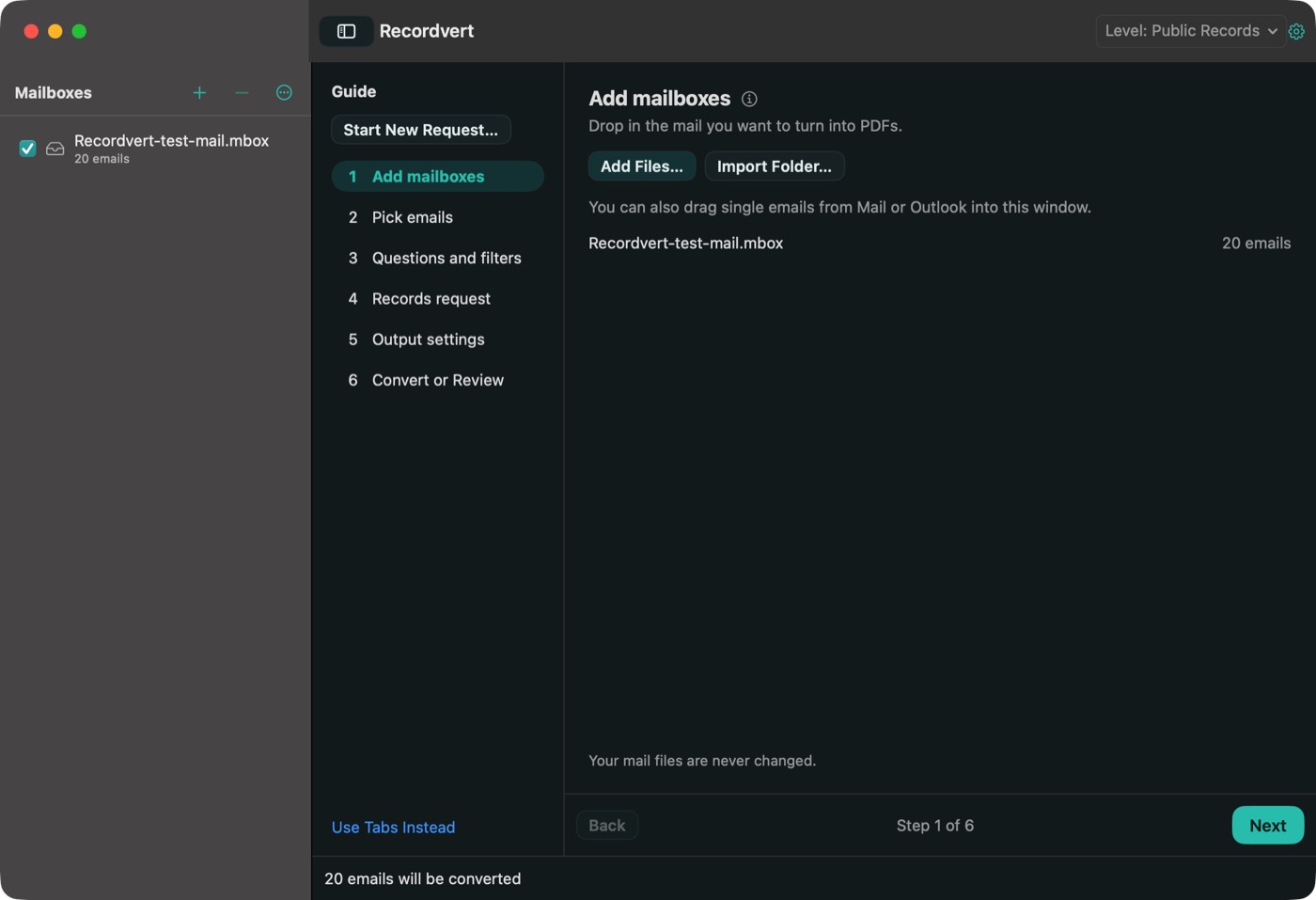
Add mailboxes
Add Outlook PST or OST files, or mbox files from Apple Mail, Gmail Takeout, Thunderbird and others. Use Add Files, drop them on the window, or use Import Folder to bring in a whole folder at once.
You can also drag emails straight in from Mail or Outlook. Recordvert reads the files itself, so you don't need Outlook, Windows or an account, and your mail files are never changed.
Pick emails
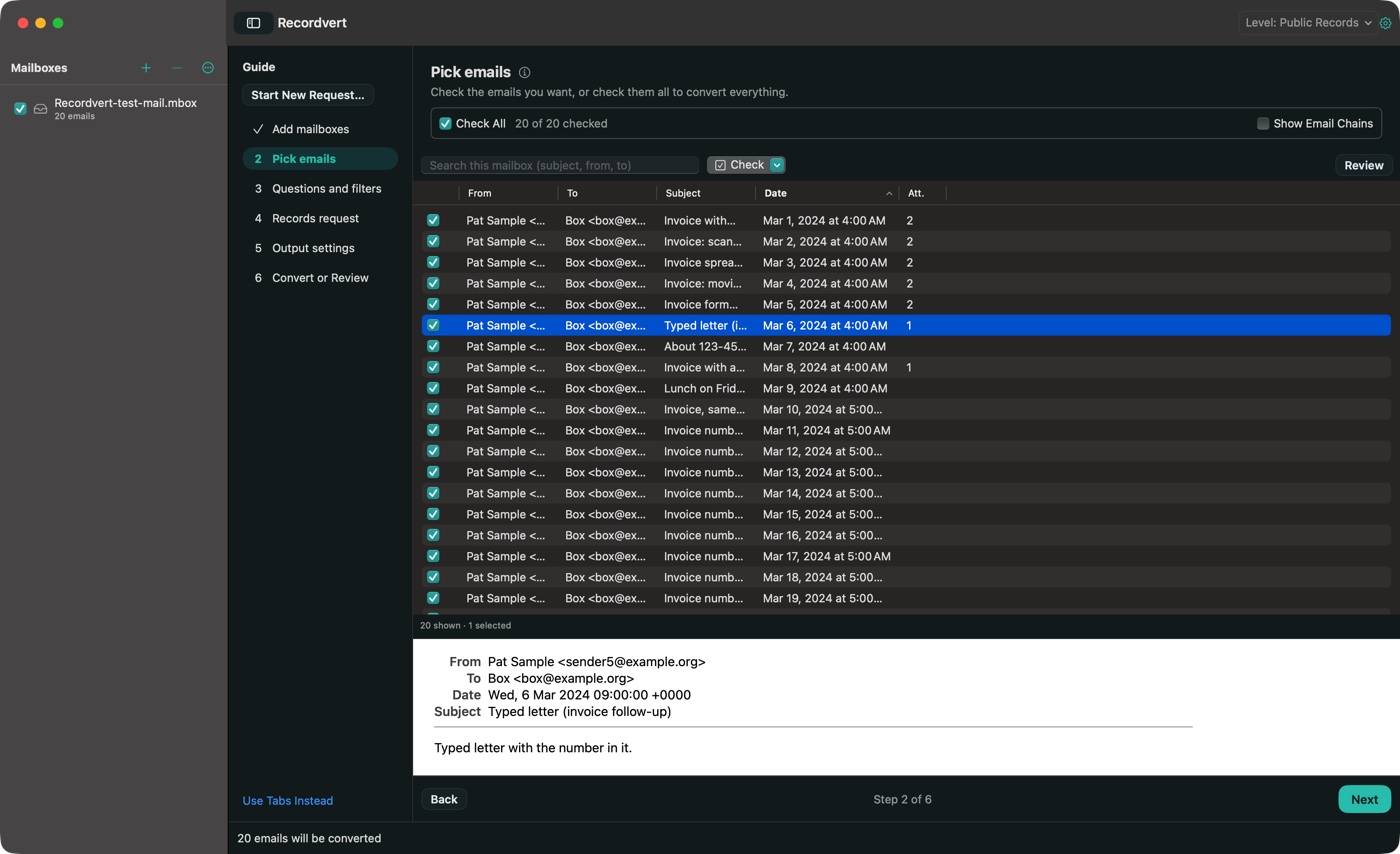
Tick whole mailboxes or single emails, and preview any email before you decide. If the same email turns up twice, only one copy is converted, and the summary tells you how many were skipped.
Questions and filters
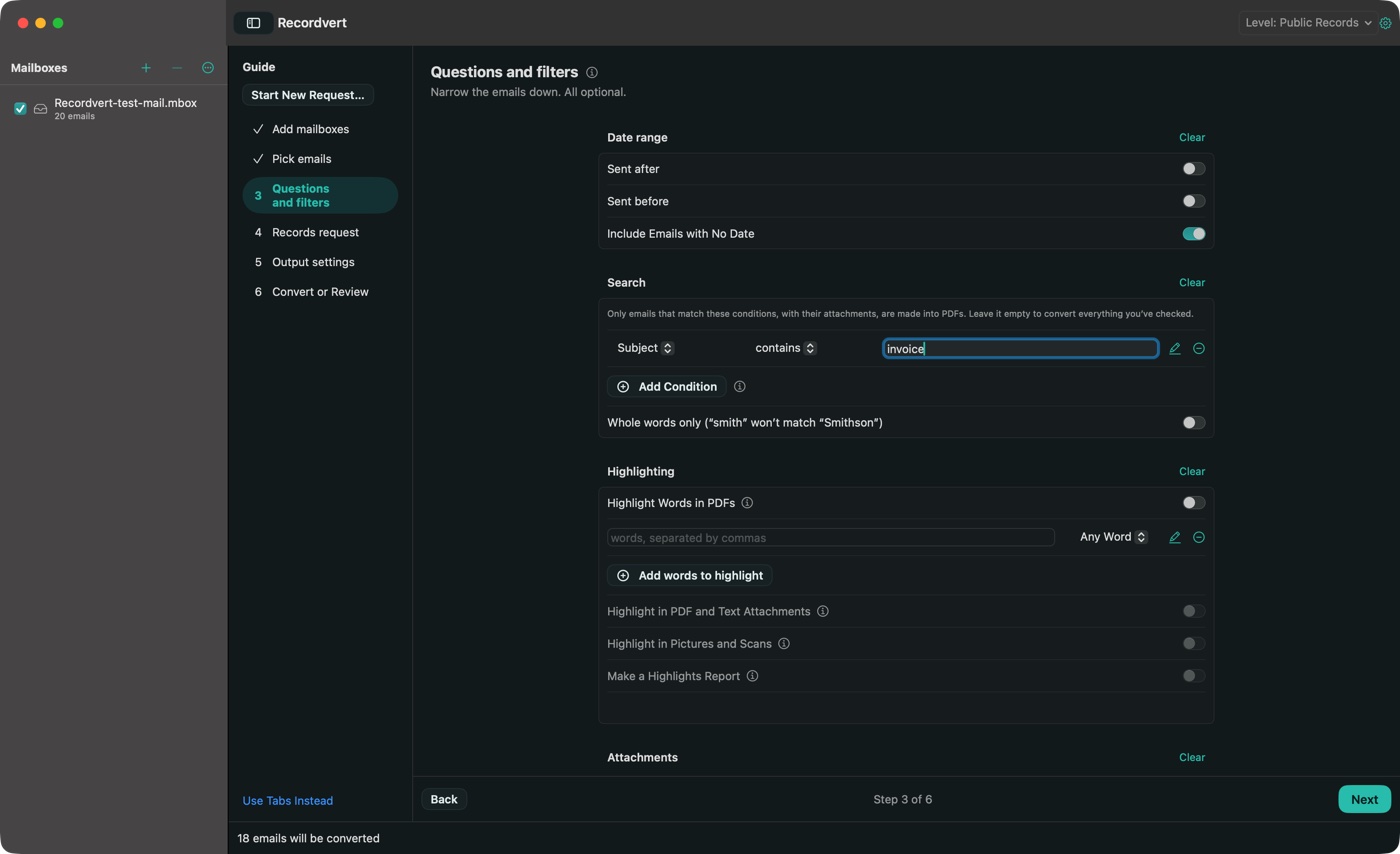
Narrow the list by sender, recipient, subject, words in the message, dates or attachment type. Add * to match the start of a word, so smith* also finds Smithson.
You can have your search words highlighted in the PDFs, and replies grouped into conversations.
Records request (optional)
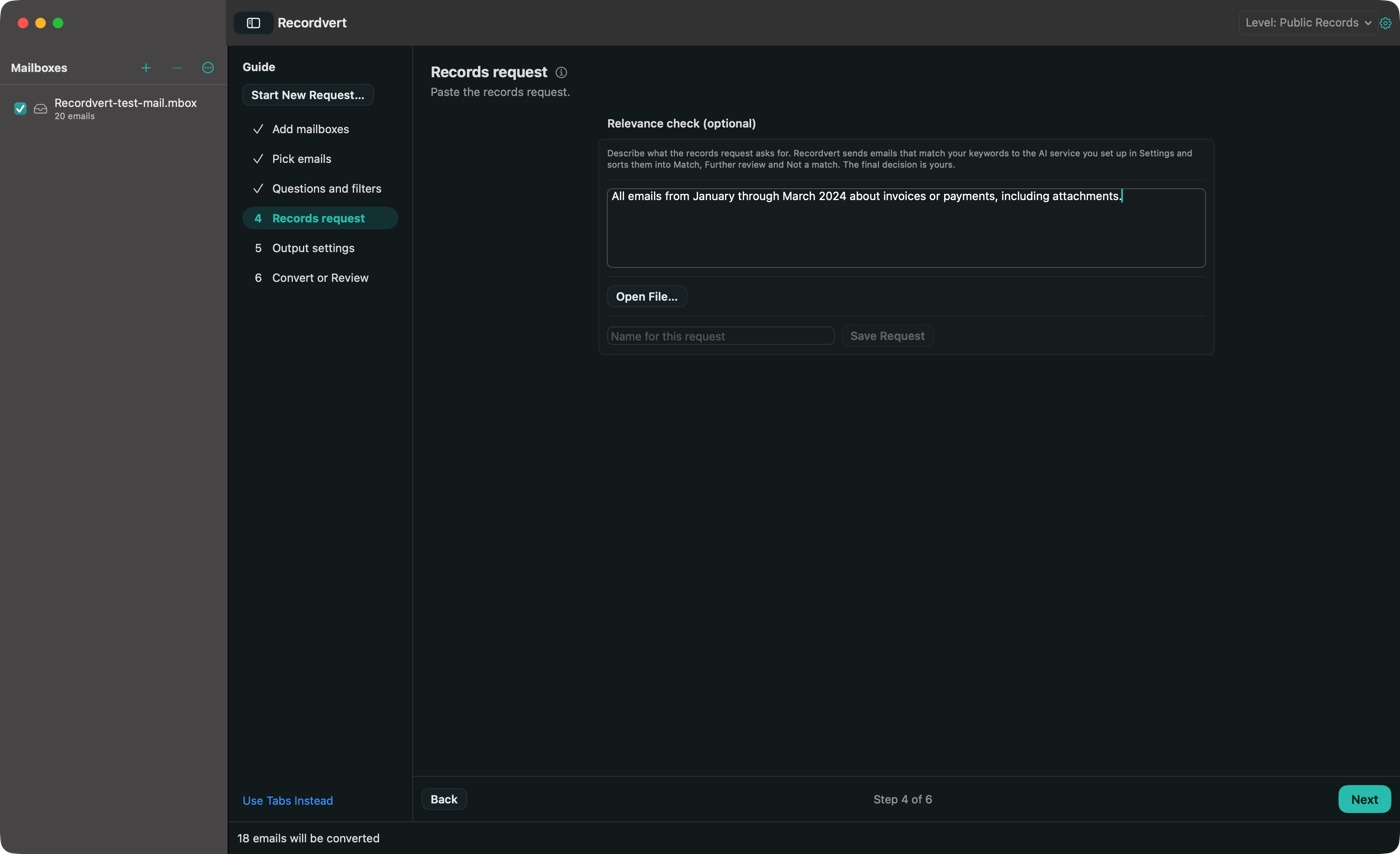
If you're answering a public records request, paste or type it here. The optional AI relevance check compares each email with it. More about records requests.
Output settings
Choose where the PDFs go and how they're named. Attachments can be saved next to each email, added to the end of its PDF, or both. Word, Excel, PowerPoint, OpenDocument, Pages, Numbers and Keynote files are converted to PDF, with the original kept beside each one. Anything else is saved exactly as it came, and the summary lists it.
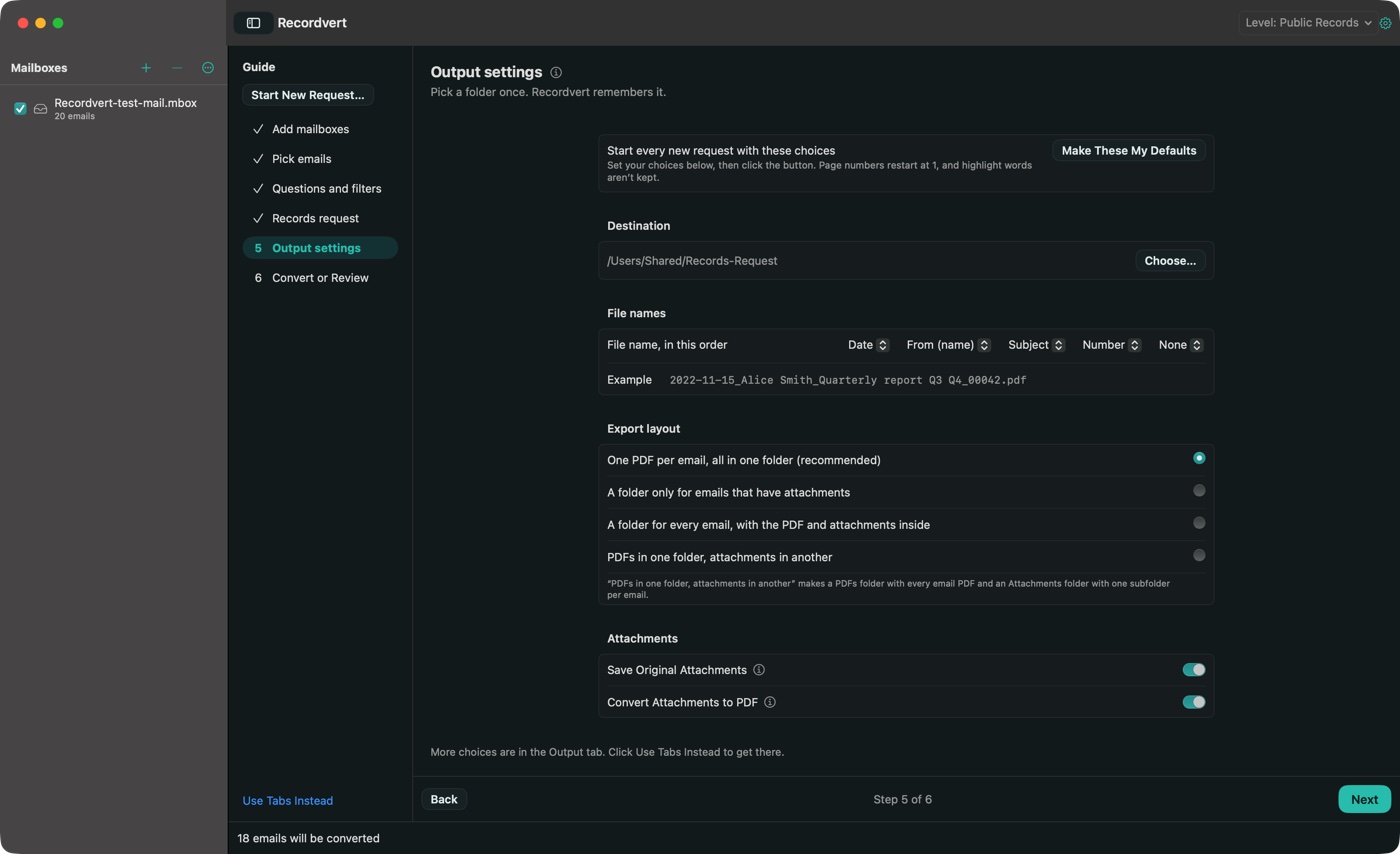
Convert, or review first
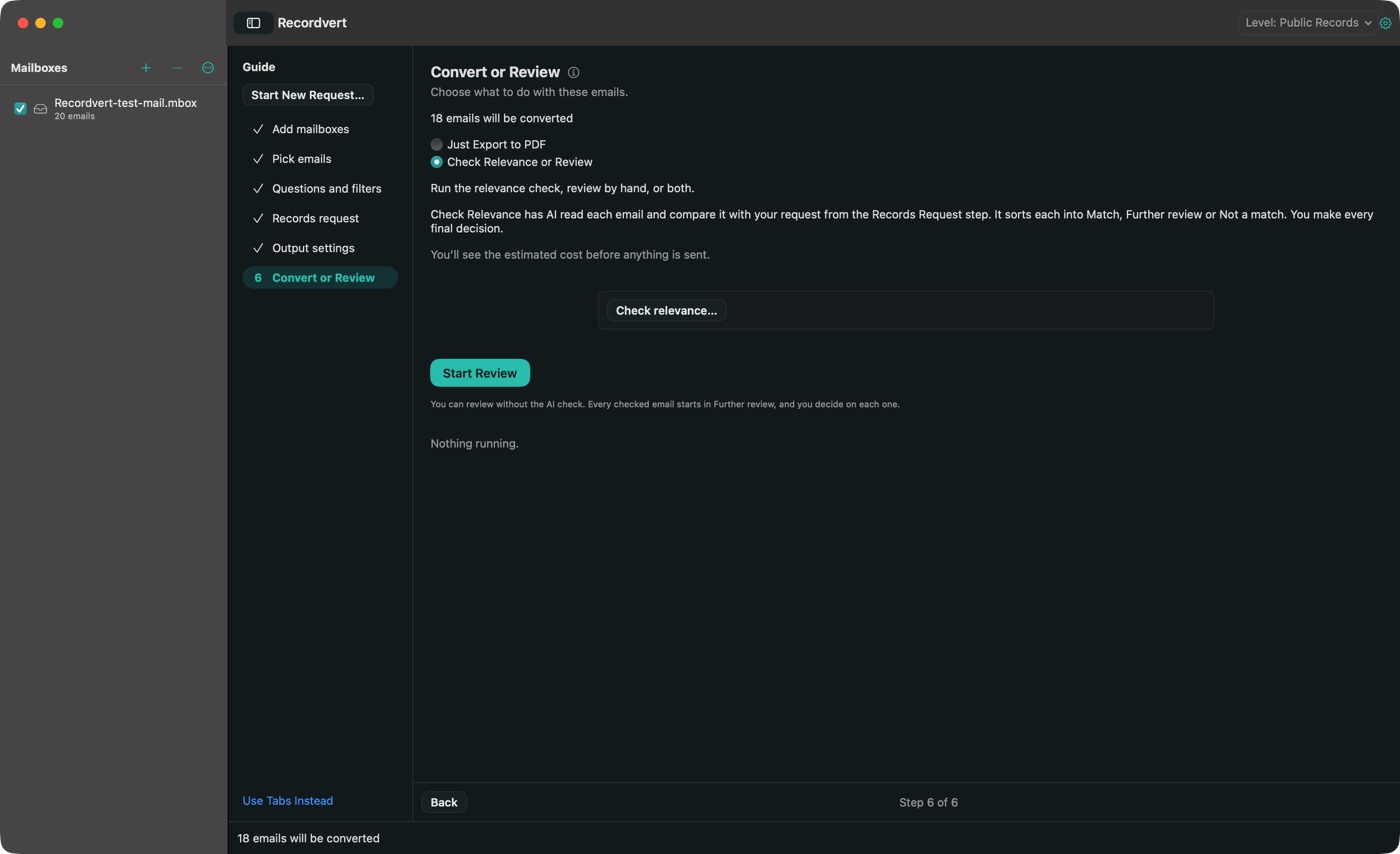
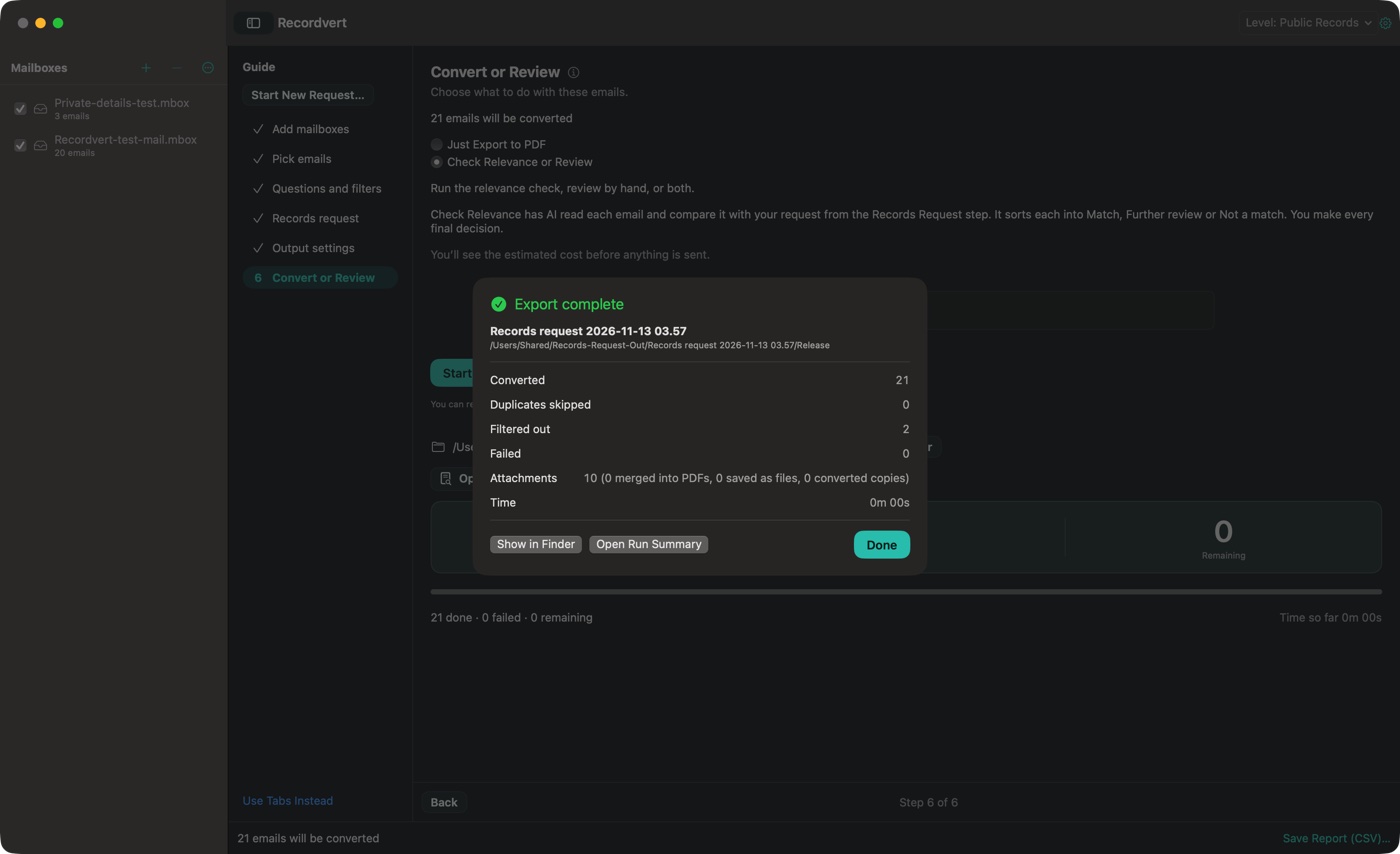
Choose "Just Export to PDF" and Recordvert writes the PDFs, a run summary and a spreadsheet (report.csv) listing every email. You can stop a long run and pick it up later where it left off.
Or choose "Check Relevance or Review". You can run the AI check, review by hand, or both. Neither needs the other.
The review
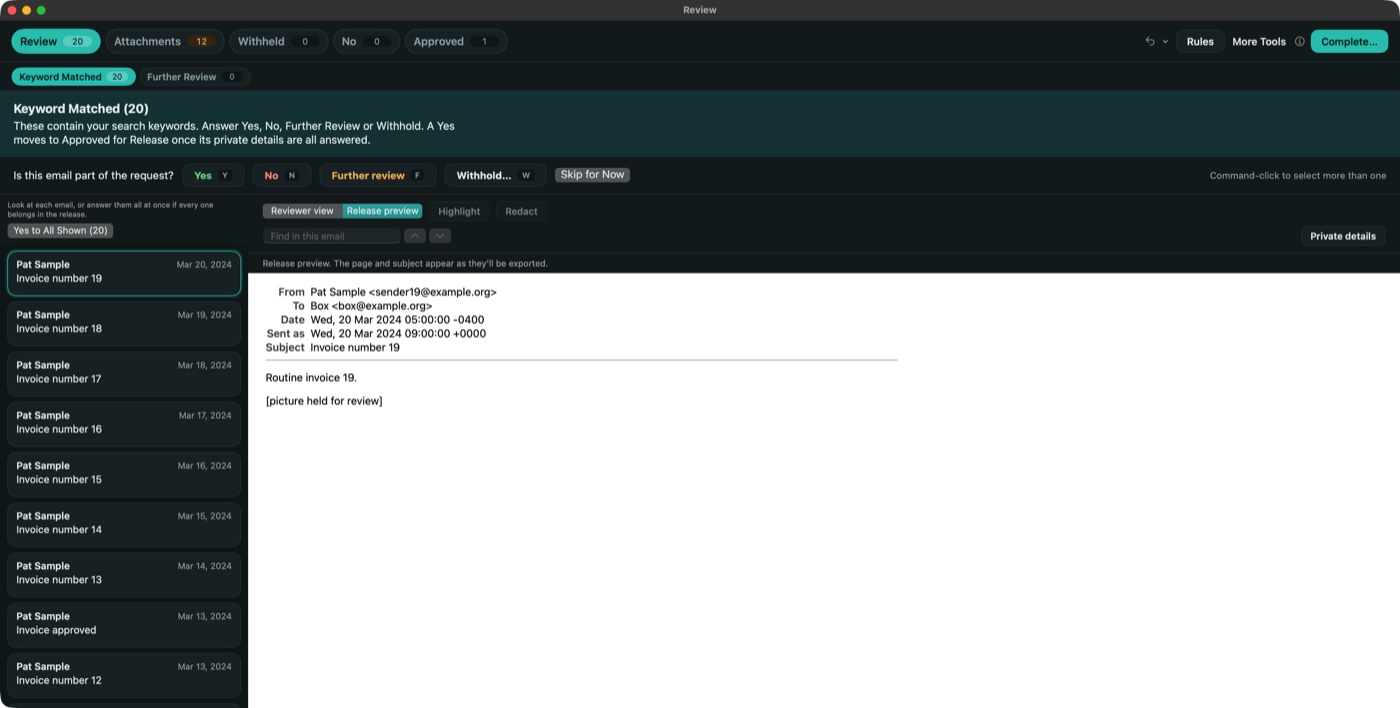
The review is where you decide what goes out. Nothing is exported until you click Complete.
Where emails start
If you ran the AI check, each email starts where the AI put it. After a keyword search, the emails it found start under Keyword Matched. If you simply picked the emails yourself, they all start under Further Review.
Either way, every email needs an answer from you. A match from the AI or a keyword is only a suggestion.
Answer each email
- Yes: include it in the release.
- No: it isn't part of the request, so it isn't released.
- Further Review: you want to come back to it before deciding.
- Withhold: it's part of the request but you're holding it back, with a reason. It goes on the withheld list.
The Y, N, F and W keys answer without the mouse, and Undo takes back one change or several.
Private details
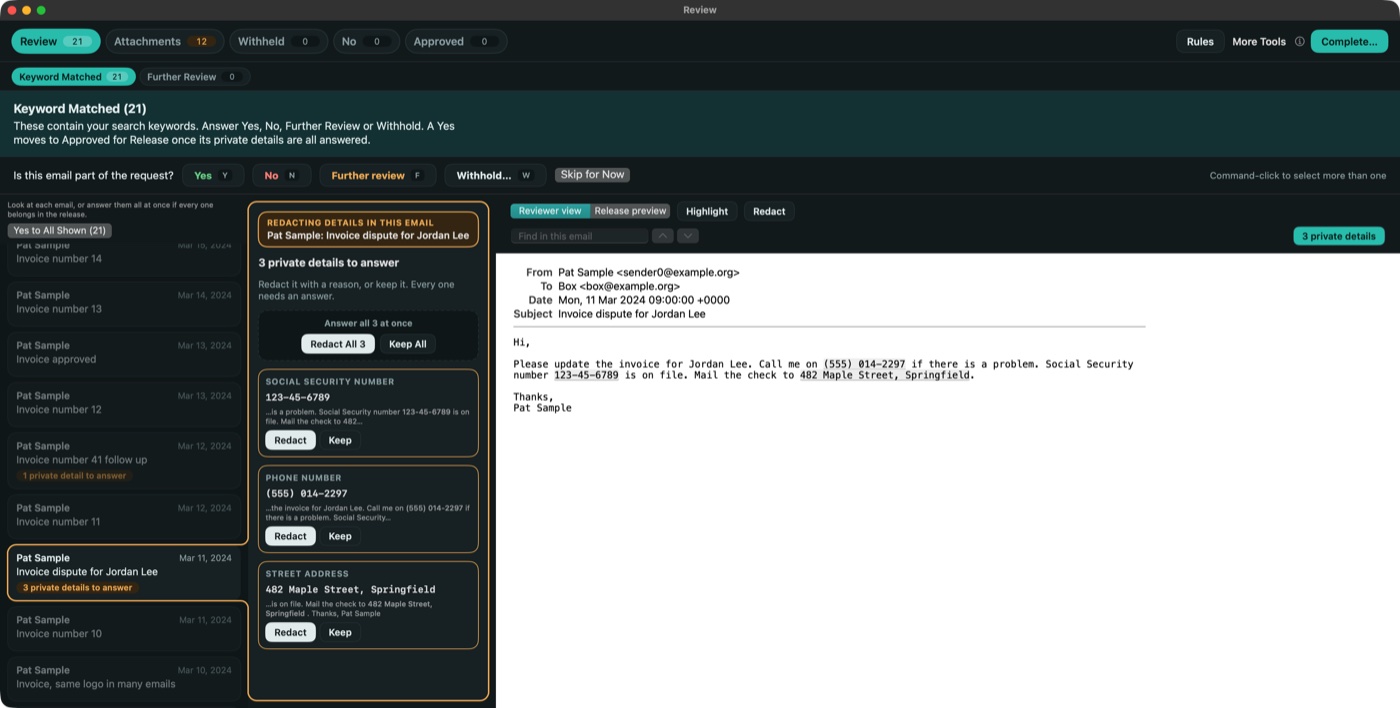
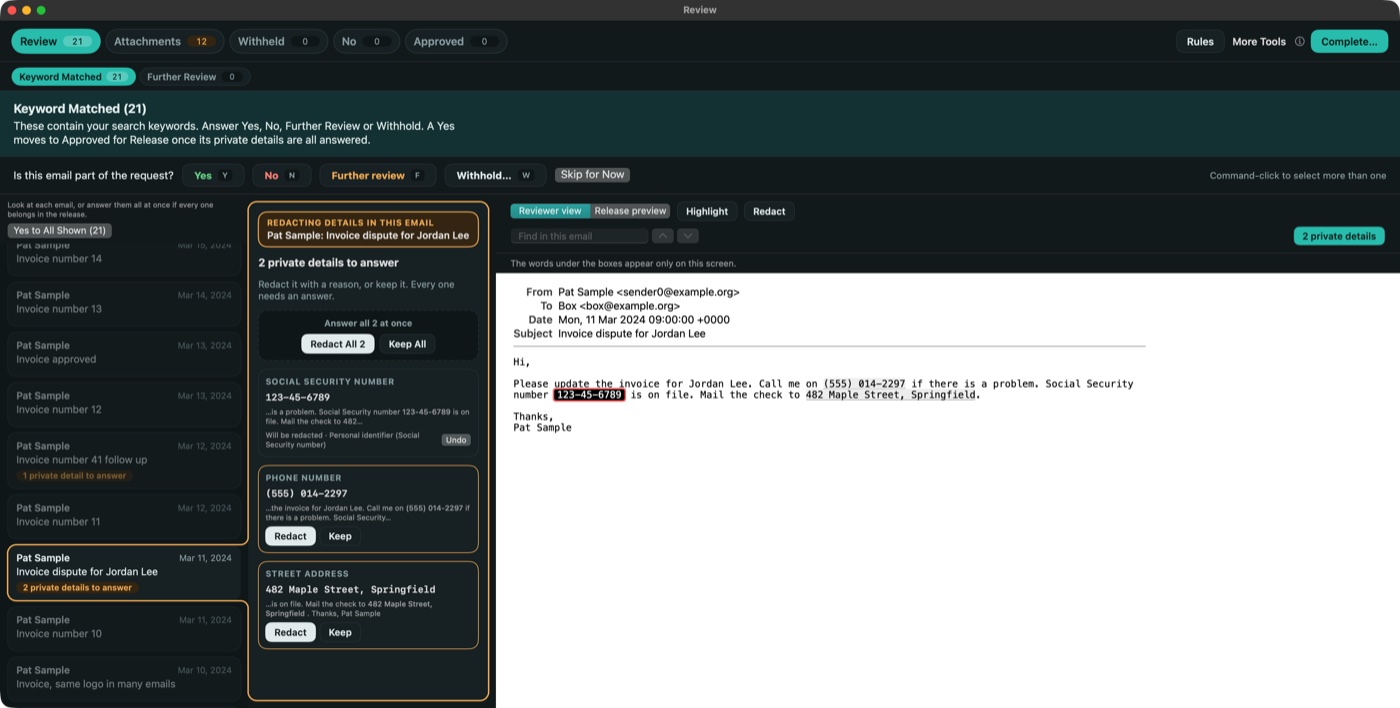
When you open an email, Recordvert lists the private details it found: phone numbers, email addresses, Social Security numbers, card and bank numbers, dates of birth, driver's license and plate numbers, and street addresses.
For each one, choose Redact or Keep. Redact puts a black bar over it with the reason printed on it, such as an exemption from your state's law. You can also select any other words and redact them.
It won't find everything. Names, medical details and student ID numbers, for example, you have to spot and redact yourself.
Attachments and pictures
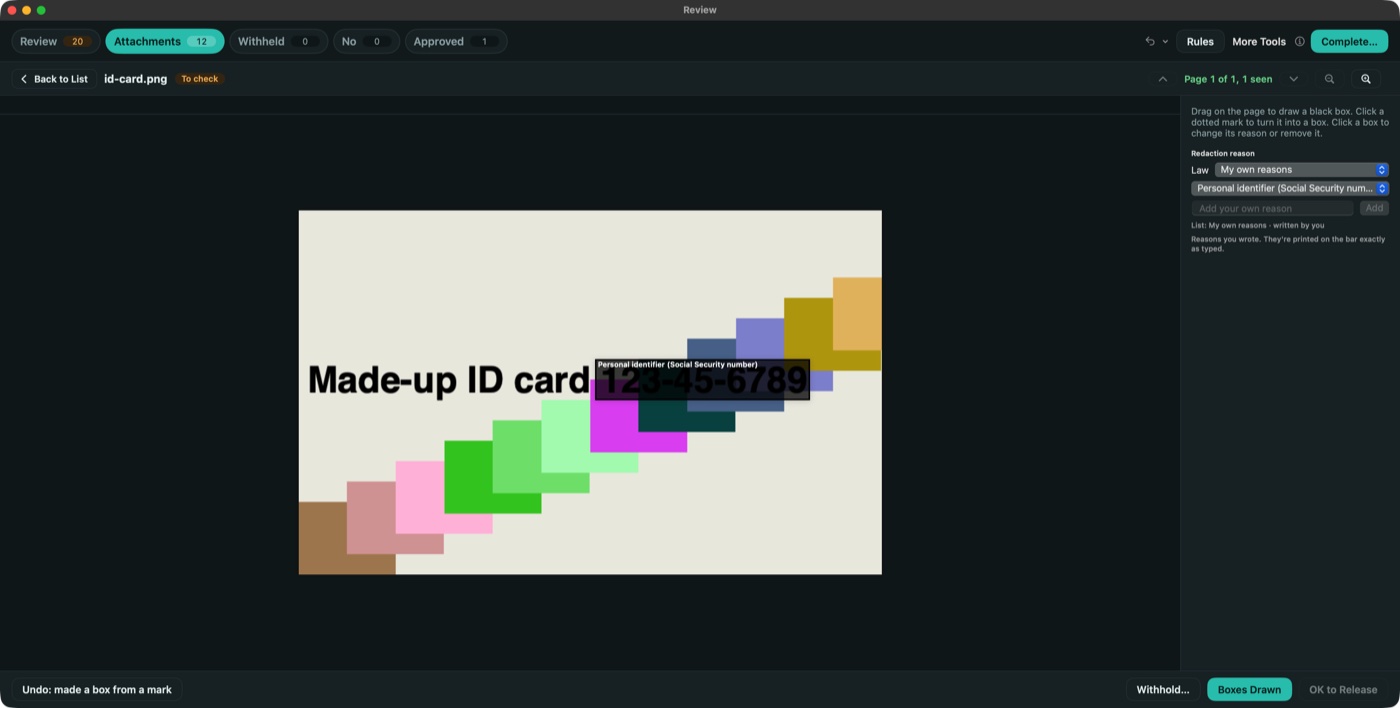
When a review starts, Recordvert asks whether you want to review attachments and pictures too. If you do, each one has to be looked at before it can be released: mark it OK, draw black boxes over anything that must be redacted, or withhold it with a reason. In pictures, Recordvert reads the text and puts a dotted mark on private details it finds, so you can turn a mark into a box with one click.
A file that was sent in many emails shows up once, and your decision applies to every copy.
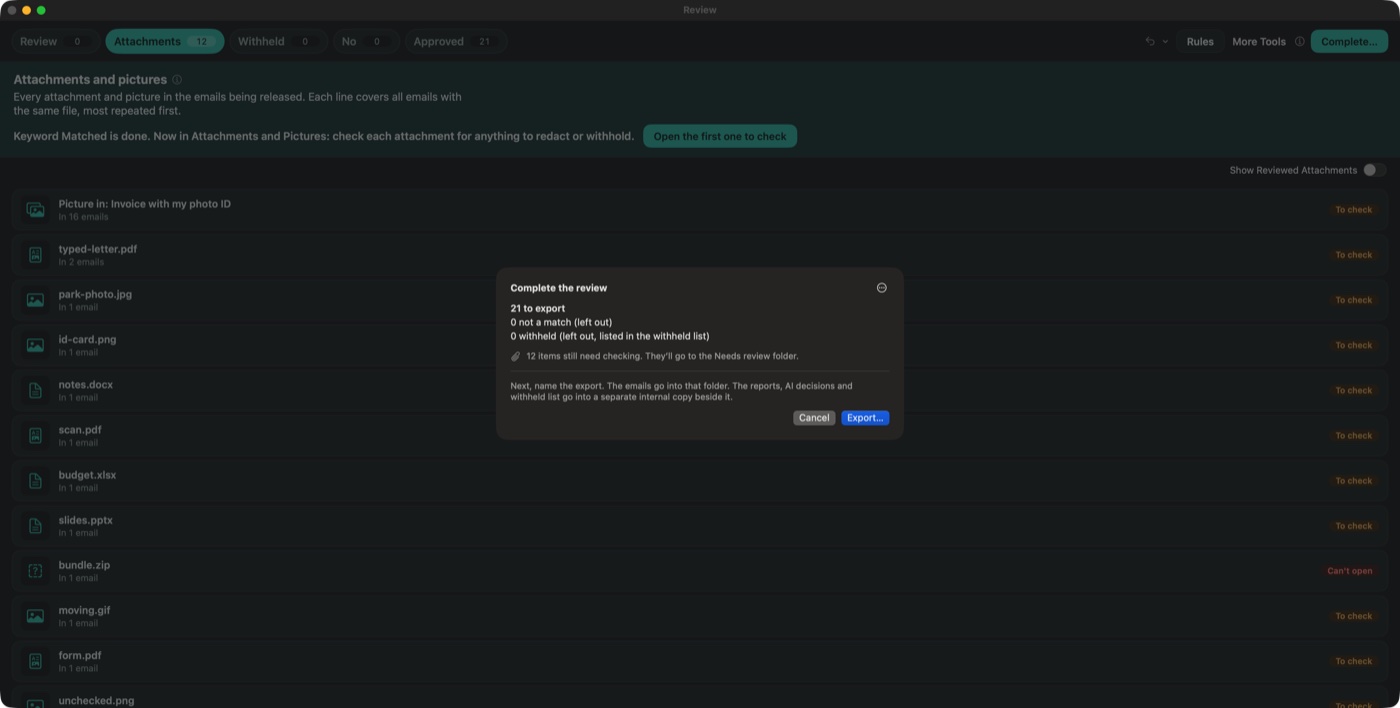
If you skip this, attachments aren't released. They all go to the Needs review folder for you to deal with later.
Two views
Reviewer view shows the email with your marks on it. Release preview shows exactly what will go out, with the black bars in place, so you can check your work before you finish.
Export and final check
Complete
Click Complete when you're done. Recordvert shows how many emails will be exported, left out and withheld. If anything still needs a decision, it tells you what and takes you straight to it.
Three folders
- Release: what you hand over.
- Needs review (not released yet): anything that wasn't checked, or that Recordvert couldn't make safe. It only appears when something was held back.
- Internal file copy (do not release): the reports, the withheld list, the redaction log and the unredacted originals. This one is for your records.
Each folder has a short READ ME that says what's in it and whether it can be sent.
The final check
After the export, Recordvert opens every file in Release and checks it again. It makes sure the black boxes are solid with nothing underneath, that hidden details such as photo locations and PDF comments are gone, that no stray files have crept in, and that nothing you redacted can still be found.
A file that fails is moved to Needs review, never deleted, and the Complete window and run summary tell you which file and why.
Think of it as a safety net, not a guarantee. Look through Needs review, and read what you release.
The redaction log
The internal copy includes a redaction log: what was redacted, the reason, who decided and when. It never repeats the private values themselves.
Three levels
Recordvert only shows what you need. Pick a level the first time you open it, and change it any time from the top of the window.
- Just Convert to PDF: add mailboxes, tick the emails you want, choose a folder and click Convert.
- Search and Convert: adds filters, highlighting, conversations and reports.
- Public Records: everything, including the records request, the AI relevance check, the review and redaction.
What it leaves out
Calendar entries, tasks, contacts and notes stored in a mailbox are skipped, and the summary says how many. Very old 32-bit PST files and some encrypted files can't be read, and the app tells you when that happens.
In a review, Recordvert can't look inside zip files, videos, sound files or attached emails yet. You can withhold those, release them as they are, or leave them in Needs review. On a scanned page, you draw the boxes yourself.