 Recordvert
 for public records requests
When a request covers email, someone has to find the right messages, read every one, redact what the law allows and keep track of it all. Recordvert helps with each part, on your own Mac, and you make every decision.
1. Find the emails that may match
Start with a keyword search, your own picks, or the optional AI relevance check. With the AI check, you paste in the request and it sorts each email by how well it fits, with a short reason.
Those are only suggestions. Every email still needs your answer in the review.
About the optional AI check
The AI check is off until you turn it on. It uses the AI provider you choose, with your own account and key. You see the estimated cost first, and nothing is sent until you agree. Then the headers, body and attachment text of each email being checked go to that provider. None of it comes to me.
On a Mac with Apple Intelligence, you can choose "This Mac (Apple)" instead, and nothing leaves your Mac. It's less accurate, so treat it as a first pass.
What the AI was asked and what it answered are saved in the internal file copy, so you have a record.
2. Review one by one
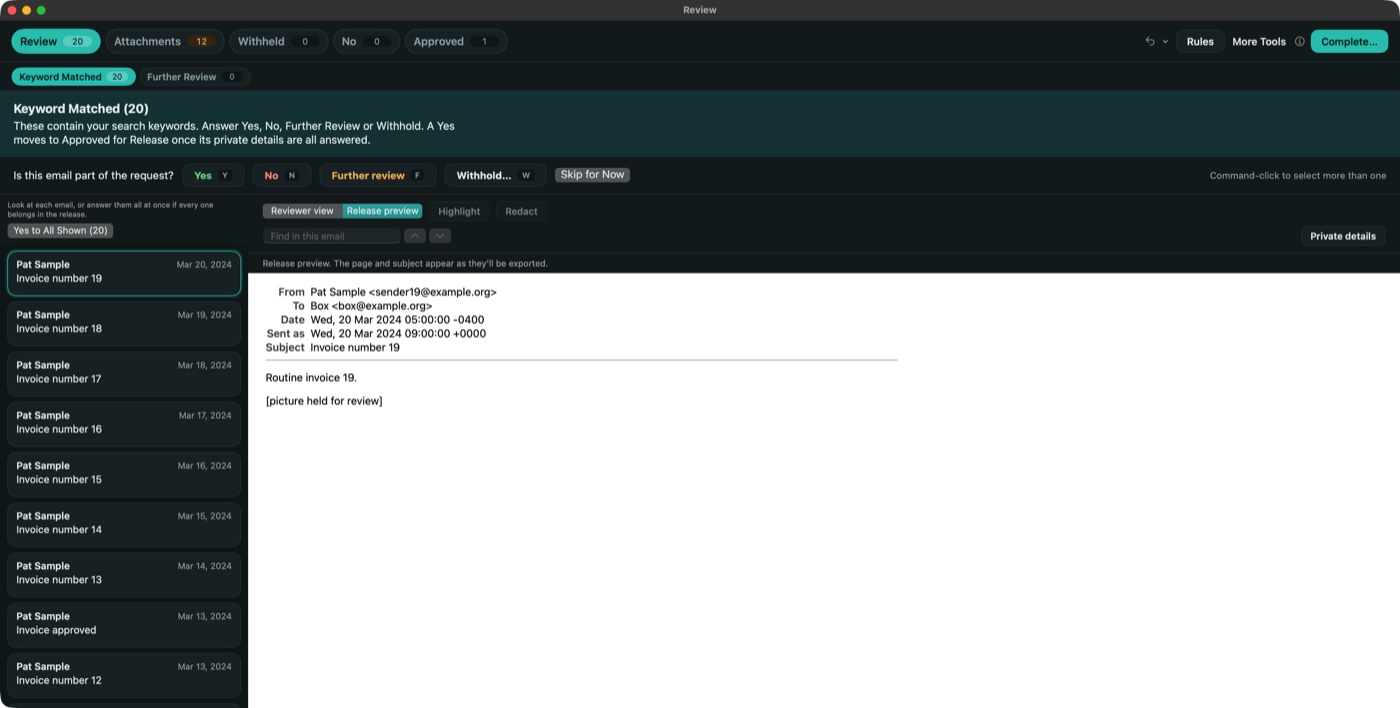
Work through the emails in the review window and answer each one Yes, No, Further Review or Withhold. A withheld email needs a reason, and goes on the withheld list instead of into the release.
When you finish one group, Recordvert takes you to the next one with work left, and a bar under the tabs tells you what to do next.
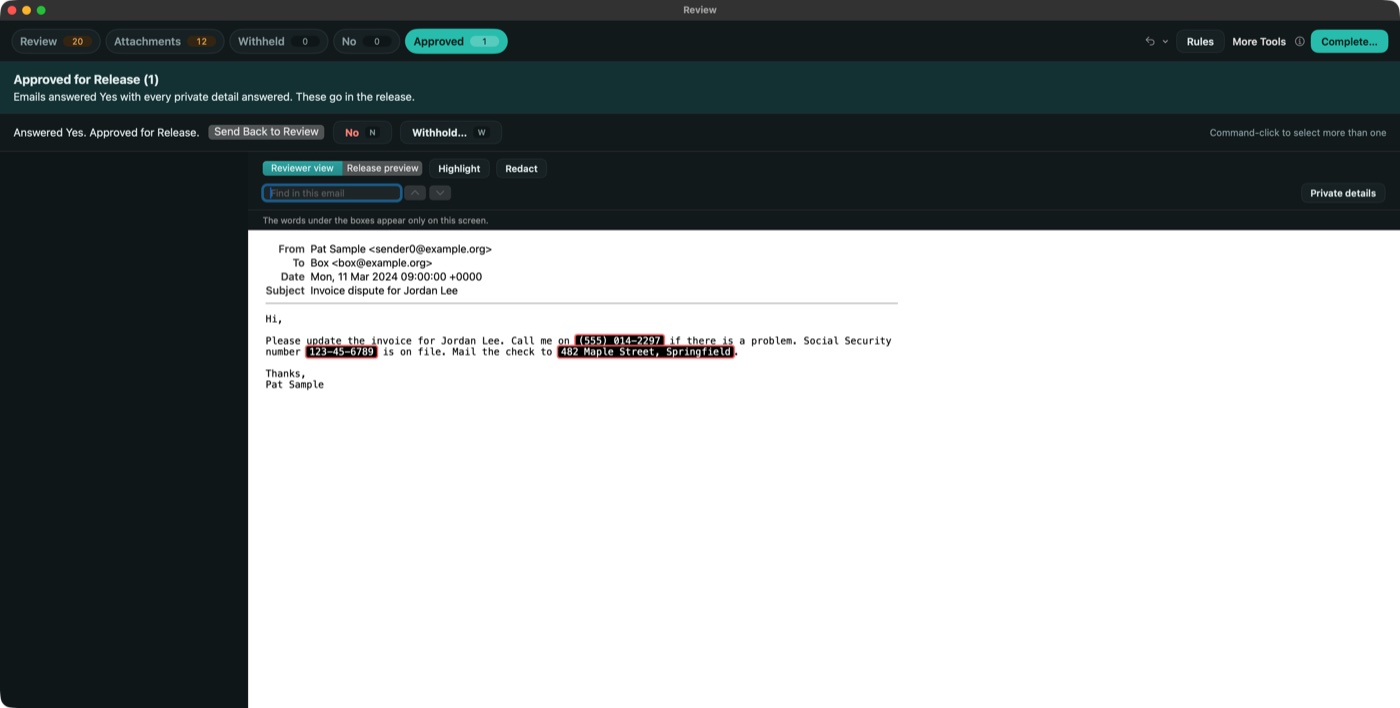
3. Find private details and redact
Recordvert spots private details such as Social Security numbers, phone numbers, bank numbers and street addresses, and you choose Redact or Keep for each one.
You can also select any words and redact them in one email or in every email they appear in. Each redaction gets a reason, picked from your state's public records law, the federal list, or reasons you write yourself.
Attachments and pictures can be reviewed too. Draw black boxes over anything that must go. The boxes are burned in, so what's underneath is gone from the released file, not just covered.
4. Complete, then the final check
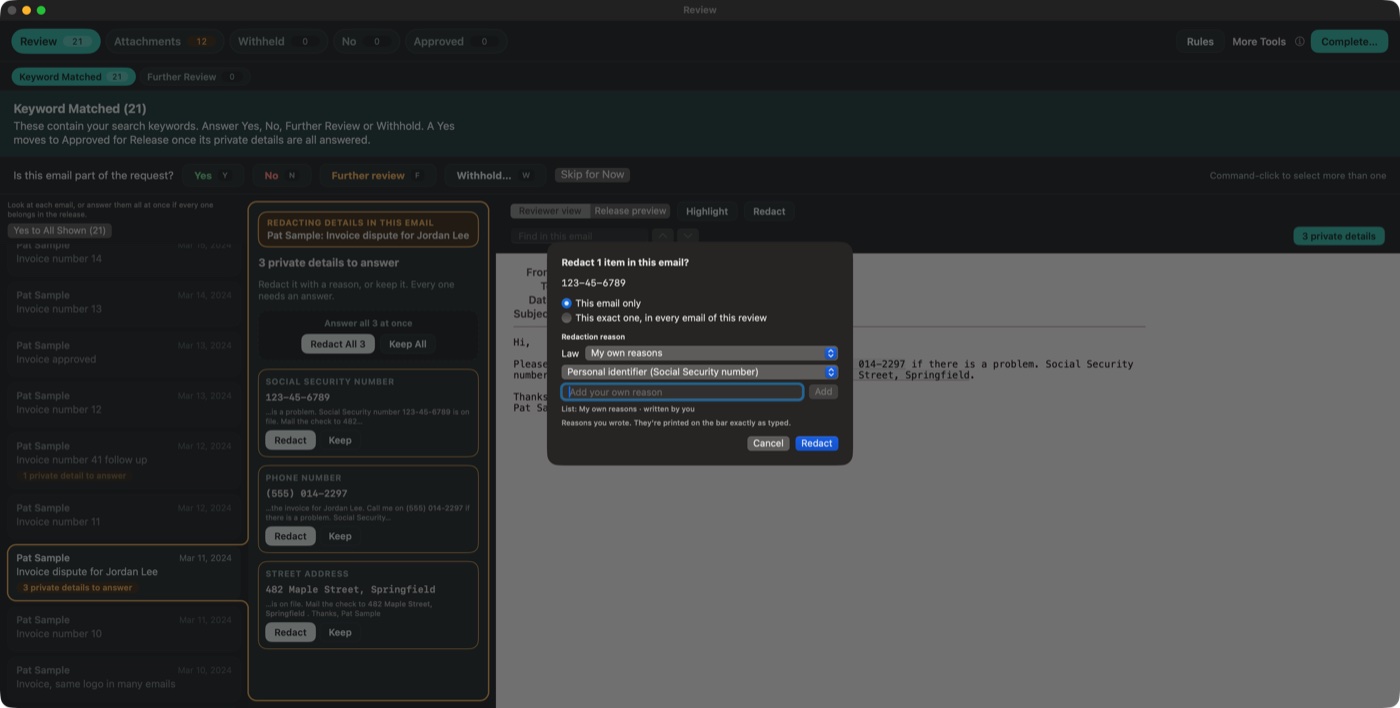
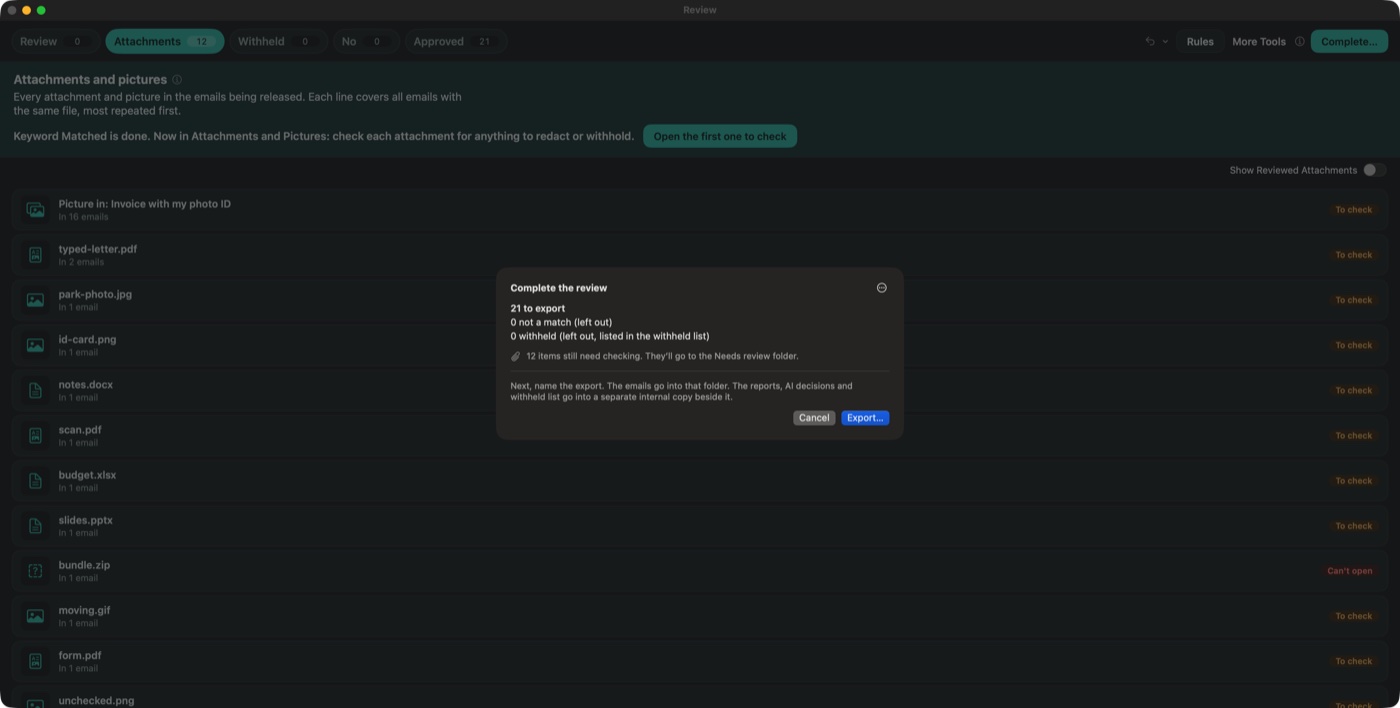
Click Complete. Recordvert shows how many emails will be exported, left out and withheld, and anything that still needs a decision.
The export makes three folders: Release, Needs review, and an internal file copy for your records. Then a final check opens every file in Release, and anything doubtful is moved to Needs review. Nothing is deleted.
The internal copy also keeps a redaction log: what was redacted, the reason, who decided and when.
A word of caution
The state law lists in Recordvert are a starting point, so check them with your attorney. Recordvert doesn't give legal advice and doesn't decide what must be released.
It helps you find private details and checks its own work, but it can't catch everything. Read what you release before you send it.